How to Brand Proposals and Organize Devices with Custom Fields and Tags
Breeze RMM puts your logo and colors on the proposals and report PDFs your clients receive, set once at the partner level for every client. Then each client gets its own portal accent and support email, and the fleet gets a partner-wide custom field and a tag you can show as columns.
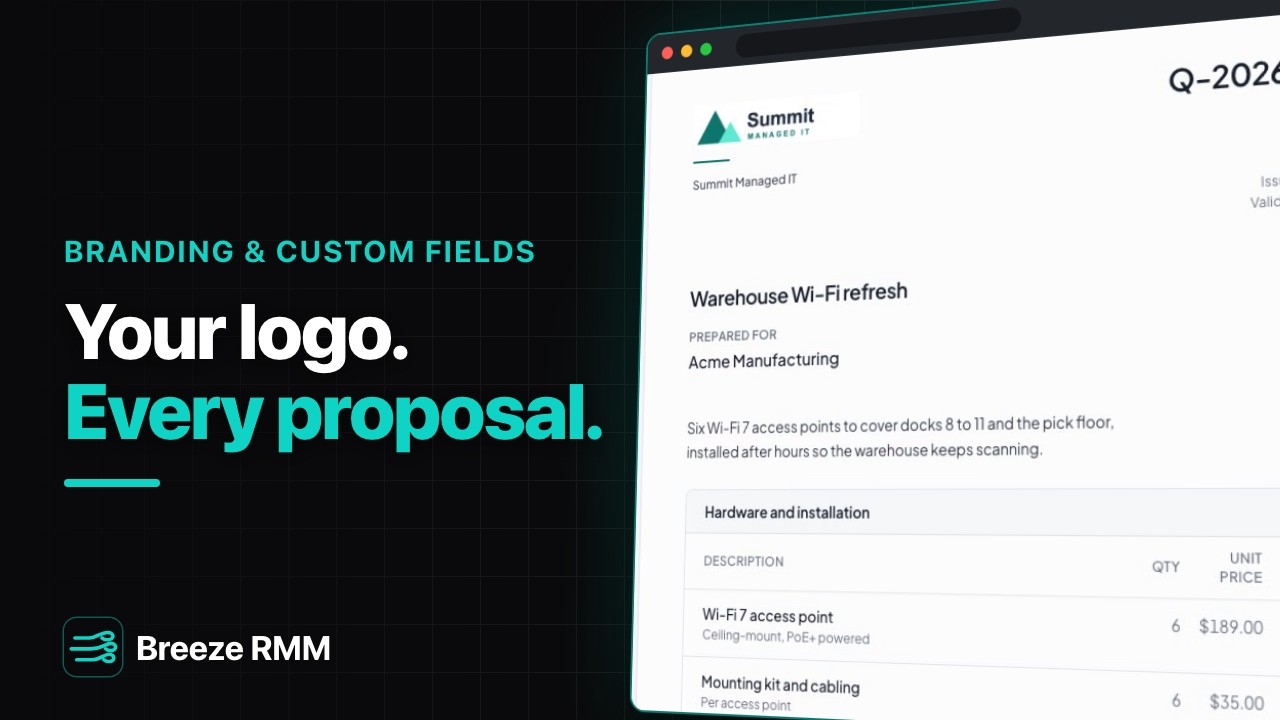
3:27 Captions: English Open on YouTube
What's in the demo
- Settings → Partner → Branding, under the banner "Values you set here are enforced across all organizations": a "Summit / MANAGED IT" PNG logo, Primary Color #0F766E, Secondary Color #1E293B
- Save Settings once ("Partner settings saved"), and every organization picks it up
- The Preview tab of draft proposal Q-2026-0900, "Warehouse Wi-Fi refresh" for Acme Manufacturing: the Summit logo at the top and "Due on acceptance $1,994.00" in the teal primary color
- Acme Manufacturing's settings → Customer Portal: Portal accent set to Teal (status colors never change), support email [email protected], then "Save portal settings"
- Settings → Custom Fields → Add Custom Field: "Support tier" (key support_tier), Dropdown with Standard and Priority, applies to "All organizations (partner-wide)", "Allow scripts to write this field" ticked. The row reads "All organizations"
- ACME-SRV-01 → Details tab → Custom Fields: Support tier set to Priority with the pencil
- More actions → Device Settings: tag "critical" added, then Save Changes
- Devices & Assets → Columns: Tags and Support tier turned on, search "SRV": 3 of 32 devices, and ACME-SRV-01 shows the critical tag and Priority
Questions this video answers
- How do I put my logo on proposals in Breeze RMM?
- Go to Settings → Partner → Branding, upload a logo, set a primary color (the accent on proposals and reports) and a dark secondary color (headings on proposal PDFs), then Save Settings. Branding is enforced from the partner level, so every client picks it up. The proposal preview, the proposal PDF, the link your client signs from, and client report PDFs all carry it.
- Can each client's portal look different?
- Yes. Open the client under Settings → Organizations, then Customer Portal. There you set that client's accent color for buttons and links, a support email and phone, footer text, and which portal sections they see. Each organization is set independently, and the support email shows in their portal under "We're here to help."
- How do I add a custom field to every client's devices?
- Settings → Custom Fields → Add Custom Field. Choose Text, Number, Yes/No, Dropdown or Date, and set Applies to "All organizations (partner-wide)". Set values on a device's Details tab, bring them in with "Import from another RMM", or tick "Allow scripts to write this field" so a script can fill it in.
- How do I tag devices, and are tags case-sensitive?
- Open the device, then More actions → Device Settings, type the tag, add it, and Save Changes. Tags need no setup. Breeze stores every tag in lowercase, so Critical and critical are the same tag.
- Can I show and filter devices by a custom field or tag?
- Yes. On Devices & Assets, Columns adds Tags and any custom field as a column, and you can filter the list on either one.
A note on the demo: partner branding shows up on documents (proposals and report PDFs). The customer portal takes each client's accent color and support contact, but it does not show your logo or name today, and the video doesn't claim it does. All organization, device and contact names are fictional demo data.
Do this on your own fleet
Everything in the video is in the product you get. Start the Cloud Beta in minutes, or self-host the open-source Community edition for free.