What Breeze AI Can Actually Do For Your Help Desk
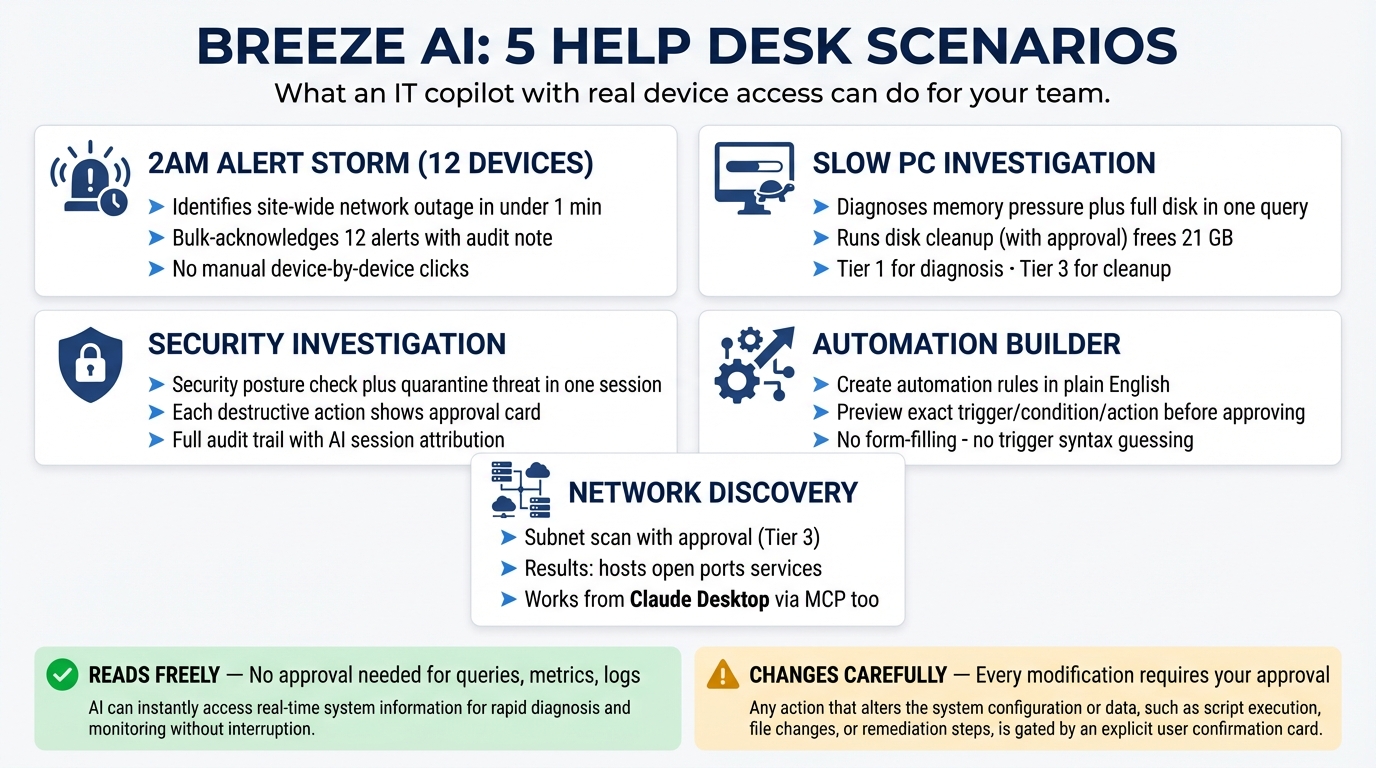
In Parts 1 and 2, we focused on what Breeze AI can’t do. Now let’s talk about what it can.
Breeze AI isn’t a chatbot stapled onto a dashboard. It’s an IT copilot with real access to your device fleet, scoped by your permissions, gated by approval flows, and aware of what you’re looking at on screen. Here’s what that looks like in practice.
It Knows What You’re Looking At
When you open the AI chat sidebar (Cmd+Shift+A), it automatically picks up context from your current page. Viewing a device? The AI knows the hostname, OS, status, and IP. Looking at an alert? It sees the title, severity, and affected device.
This context appears as a badge in the chat header, a small pill showing “FRONT-DESK-PC” or “High CPU Alert,” so you always know what the AI is working with. You don’t have to say “the device I’m looking at” and hope it guesses right.
This isn’t cosmetic. The context is injected into the system prompt, which means the AI prioritizes information relevant to what’s in front of you. Ask “what’s wrong?” on a device page and it pulls metrics for that device. Ask the same question on the dashboard and it gives you a fleet overview.
Scenario 1: It’s 2 AM and 12 Devices Are Alerting
You get paged. A dozen alerts fired in the last ten minutes. You open Breeze, hit Cmd+Shift+A, and type:
“Show me all critical and high alerts from the last hour”
The AI calls manage_alerts with severity: 'critical' and severity: 'high'. Tier 1, auto-executes instantly. You get a table: alert titles, affected devices, timestamps, severities.
Pattern recognition kicks in. You notice they’re all from the same site. You ask:
“Are these devices all at the same site? What do they have in common?”
The AI calls query_devices to cross-reference, then analyze_metrics to pull CPU, RAM, and network data. All Tier 1, no approval needed, results stream back in seconds. It spots the pattern: all 12 devices show network throughput dropping to zero at 1:47 AM.
“Looks like a network outage at Site: Downtown Office starting at 1:47 AM. All 12 devices lost connectivity simultaneously. CPU and RAM are normal. This isn’t a resource issue.”
You’ve gone from “12 alerts” to “site network outage” in under a minute, without manually clicking into each device.
Now you want to check if the devices are recovering:
“Acknowledge all of these alerts with the note ‘Network outage at Downtown Office, investigating’”
The AI calls manage_alerts with action: 'acknowledge'. Tier 2, auto-executes with audit logging. All 12 alerts acknowledged in one shot, the note attached to each one, the action recorded in the audit log.
Scenario 2: “This PC Is Slow,” The Eternal Ticket
A user at a client site submitted a ticket: “My computer is slow.” You have a hostname. You navigate to the device page, open the AI sidebar, and the context badge shows ACCT-PC-04.
“Why is this device slow? Check the last 24 hours.”
The AI calls get_device_details for hardware specs and analyze_metrics with hoursBack: 24. Both Tier 1. You get back:
“ACCT-PC-04: Windows 11, Intel i5-10400, 8 GB RAM, 256 GB SSD (92% full).
Over the past 24 hours:
- CPU: Average 34%, spikes to 95%+ between 9-11 AM
- RAM: Consistently at 87-93%, this machine is memory-constrained
- Disk: 92% full with only 18 GB free
The combination of low free RAM and a nearly-full disk is likely causing the slowness. Windows needs free disk space for virtual memory (pagefile). Recommendations:
- Free up disk space (target: at least 15-20% free)
- Consider a RAM upgrade to 16 GB”
You want to see what’s eating the disk. You ask:
“Run a disk usage analysis on this device”
The AI calls analyze_disk_usage. Tier 1 for the analysis itself. It returns a breakdown by directory with the largest files and folders.
“Top space consumers:
- C:\Users\jsmith\Downloads: 47.2 GB (hundreds of installer files and ZIP archives)
- C:\Windows\Temp: 12.8 GB
- C:\Users\jsmith\AppData\Local\Temp: 8.4 GB
Downloads folder alone accounts for nearly half the disk.”
Now you want to clean up the temp files. You ask:
“Clean up the Windows temp and user temp directories”
The AI calls disk_cleanup with action: 'execute', and this escalates to Tier 3. An approval card appears inline in the chat:
┌─ ⚠ Approval Required ──────────────────────┐
│                                              │
│  Disk Cleanup: Execute                       │
│  Device: ACCT-PC-04                          │
│                                              │
│  Categories: windows_temp, user_temp         │
│  Estimated: ~21.2 GB recoverable             │
│                                              │
│  [✓ Approve]  [✕ Reject]                     │
│                                              │
│  Auto-rejects in 5 minutes.                  │
└──────────────────────────────────────────────┘
You see exactly what will happen. You click Approve. The cleanup runs, and the AI confirms:
“Cleanup complete. Freed 21.1 GB. Disk usage now at 78%.”
One conversation. Device diagnosed, root cause identified, temp files cleaned, ticket closable. The Downloads folder is a conversation with the end user, but you’ve already handled what you can.
Scenario 3: Security Investigation
You see an alert for a suspicious process on a server. You open the device page and ask:
“Run a security scan on this device and show me the current security posture”
The AI calls get_security_posture. Tier 1, instant results. You get a security score, risk level, and recommendations. Something looks off, so you dig deeper:
“Run a security status check and quarantine threat ID abc123”
Both security_scan actions, status and quarantine, are Tier 3. The AI queues them up and you get two approval cards: one for the status check, one for the quarantine. You see exactly what each action will do, approve both, and the results come back. The status report shows the threat details, and the quarantine confirms isolation. Both actions are logged in the audit trail with your user ID, the AI session ID, and the tool tier.
Now you want to know if anyone else touched this server recently:
“Show me the audit log for this device over the past 48 hours”
query_audit_log. Tier 1. You get a chronological list of every action taken on the device: commands executed, services restarted, files modified, who did it, when. Including the AI’s own actions, fully attributed.
Scenario 4: Building Automations Through Conversation
You’re tired of manually acknowledging the same low-priority alert every Monday morning. Instead of navigating to the automations page and building a rule from scratch:
“Create an automation that auto-acknowledges ‘Scheduled Backup Completed’ alerts with severity ‘info’ every Monday”
Tier 3. The AI shows you exactly the automation rule it’s about to create:
┌─ ⚠ Approval Required ──────────────────────┐
│                                              │
│  Create Automation: "Auto-ack Monday backups"│
│                                              │
│  Trigger: alert.created                      │
│  Conditions:                                 │
│    title contains "Scheduled Backup"         │
│    severity = "info"                          │
│    dayOfWeek = "monday"                      │
│  Action: acknowledge alert                   │
│                                              │
│  [✓ Approve]  [✕ Reject]                     │
└──────────────────────────────────────────────┘
You verify the conditions, approve it, and the automation is live. No form filling, no guessing at the right trigger syntax.
Scenario 5: Network Discovery
You’re onboarding a new client and need to map their network. From any device at the site:
“Run a network discovery scan on the 192.168.1.0/24 subnet”
Tier 3. Network scans are resource-intensive and affect infrastructure. Approval card shows the subnet, scan type, and the device that will run the scan. Approve it, and results stream back: discovered hosts, open ports, identified services.
The MCP Integration: Use It From Claude Desktop or Cursor
Breeze AI isn’t locked to the web UI. The same 17 tools are exposed as an MCP (Model Context Protocol) server, which means you can use them from Claude Desktop, Cursor, or any MCP-compatible client:
claude mcp add breeze-rmm \
  --transport sse \
  --url https://your-api/api/v1/mcp/sse \
  --header "X-API-Key: brz_..."
The API key needs appropriate scopes (ai:read, ai:write, ai:execute). Once connected, you can manage your fleet from the same interface where you write code or draft documentation. Ask Claude “how many devices are offline right now?” and it queries your actual Breeze instance.
Same guardrails apply. Same tier system. Same approval flow (though in MCP mode, approvals happen through the MCP client’s tool confirmation UX rather than the Breeze web sidebar). For a step-by-step setup guide, see How to Use Your RMM From Claude Desktop (or Cursor). For the full tool reference, see MCP Tools for IT Management.
Copilot, Not Autopilot
Every scenario above follows the same pattern: the AI reads freely, suggests clearly, and waits for your approval before changing anything. It’s the difference between an assistant who hands you a report and one who starts rearranging your office.
The AI doesn’t make decisions. You do. It just makes sure you have the information to make them fast.
This is Part 3 of the Breeze AI Safety & Capabilities series. Previous: Under the Hood: How Breeze AI’s Guardrails Actually Work · Next: Configuring Breeze AI: The Self-Hoster’s Guide