Configuring Breeze AI: The Self-Hoster's Guide
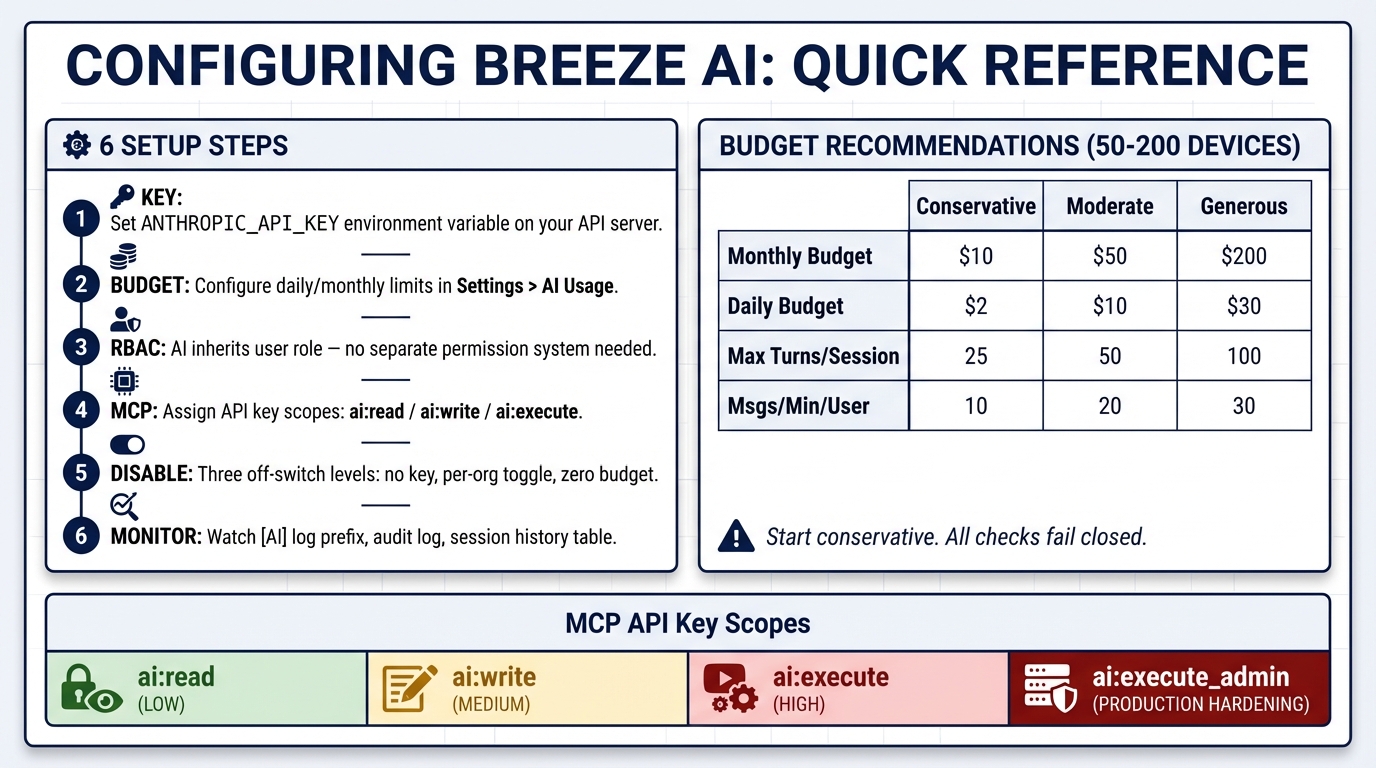
You’ve read about Breeze AI’s safety guarantees, how the guardrails work, and what it can do. Now let’s set it up.
This post covers every knob you can turn — from enabling AI for the first time to locking down MCP access in production. If you’re self-hosting Breeze, this is your reference.
Step 1: Bring Your Own API Key
Breeze AI uses Anthropic’s Claude models. You provide your own API key — Breeze never proxies through our infrastructure.
Set the environment variable on your API server:
ANTHROPIC_API_KEY=sk-ant-...That’s it. No additional AI configuration is required to get started. The default model is claude-sonnet-4-5-20250929, and the system ships with sensible defaults for everything else.
If you don’t set ANTHROPIC_API_KEY, the chat sidebar still appears in the UI, but every message will fail with an error. If you want to hide AI features entirely, disable it per-org through the admin panel (covered in Step 5).
Step 2: Budget Configuration
Budgets are configured per-organization through the admin UI at Settings > AI Usage. No environment variables needed — it’s all in the database.
The Admin Dashboard
The AI Usage page shows four stat cards at a glance:
- Today’s Cost — Current daily spend vs. daily limit
- Monthly Cost — Current monthly spend vs. monthly limit
- Messages Today — Message count for the current day
- Tokens This Month — Total input/output tokens with breakdown
Below that, the Budget Configuration panel lets you set:
| Setting | Default | What It Controls |
|---|---|---|
| AI Enabled | Enabled | Master on/off switch for the entire org |
| Monthly Budget | No limit | Hard cap on monthly AI spend (in dollars) |
| Daily Budget | No limit | Hard cap on daily AI spend (in dollars) |
| Max Turns Per Session | 50 | Maximum back-and-forth exchanges per conversation |
| Msgs/Min Per User | 20 | Per-user message rate limit |
| Msgs/Hr Per Org | 200 | Organization-wide hourly message rate limit |
These values are stored in the ai_budgets table and enforced in real-time. Changes take effect immediately — no restart required.
Budget Behavior
- No budget configured = no limits (except the hardcoded rate limits)
- Budget set to $0 = AI is effectively disabled via spend cap
- AI Enabled = Disabled = AI returns “AI features are disabled for this organization”
- Budget exhausted = AI stops responding with a clear message until the next period
All budget checks fail closed. If the database is unreachable when checking budget, the request is denied. Your monthly bill can’t spike because of a database outage.
Recommendations for Production
For a typical MSP managing 50-200 devices:
| Setting | Conservative | Moderate | Generous |
|---|---|---|---|
| Monthly Budget | $10 | $50 | $200 |
| Daily Budget | $2 | $10 | $30 |
| Max Turns/Session | 25 | 50 | 100 |
| Msgs/Min/User | 10 | 20 | 30 |
| Msgs/Hr/Org | 100 | 200 | 500 |
Start conservative. The cost anomaly detection will warn you (in server logs) when a single session hits 10% of daily budget, or when daily spend reaches 80% of the cap.
Step 3: RBAC — Who Can Use AI and What Can They Do
AI permissions are controlled through Breeze’s existing role-based access control. There’s no separate “AI permissions” system — the AI inherits the user’s role.
Here’s how tool tiers map to RBAC permissions:
| Tool Action | Required Permission | Example |
|---|---|---|
| Query devices | devices.read | Listing fleet, viewing details |
| View metrics | devices.read | CPU/RAM/disk analysis |
| Acknowledge alerts | alerts.acknowledge | Bulk alert triage |
| Execute commands | devices.execute | Running commands on devices |
| Run scripts | scripts.execute | Script execution |
| Manage services | devices.execute | Start/stop/restart services |
| File write/delete | devices.execute | File modifications |
| Create automations | automations.write | Building automation rules |
| View audit log | audit.read | Security investigation |
A technician with devices.read + alerts.acknowledge can use AI for monitoring and alert triage but can’t execute commands or modify files. The AI will tell them when it doesn’t have permission for a requested action rather than failing silently.
To effectively disable AI for a role: Don’t grant any of the permissions above. No permissions = the AI has nothing it can do.
Step 4: MCP Server Configuration (External Clients)
The MCP server lets external clients like Claude Desktop and Cursor access Breeze tools. This requires more careful configuration because MCP clients are trusted at the API key scope level — there’s no interactive approval dialog.
API Key Scopes
When creating an API key for MCP access, choose scopes carefully:
| Scope | What It Unlocks | Risk Level |
|---|---|---|
ai:read | Tier 1 tools only (query, view, analyze) | Low — read-only |
ai:write | Tier 1 + Tier 2 tools (alert management) | Medium — can acknowledge/resolve alerts |
ai:execute | All tiers including Tier 3 (commands, scripts, file ops) | High — can modify devices |
ai:execute_admin | Required for Tier 3 when MCP_REQUIRE_EXECUTE_ADMIN=true | Production hardening (add manually — not yet in the UI scope picker) |
Important: MCP tool calls skip the interactive approval flow. The API key holder is trusted to execute whatever their scopes allow. This is by design — Claude Desktop and Cursor handle tool confirmation through their own UX. But it means ai:execute keys should be treated like admin credentials.
Environment Variables
| Variable | Default | Description |
|---|---|---|
MCP_SSE_RATE_LIMIT_PER_MINUTE | 30 | SSE connection rate per API key |
MCP_MESSAGE_RATE_LIMIT_PER_MINUTE | 120 | Message rate per API key |
MCP_MAX_SSE_SESSIONS_PER_KEY | 5 | Max concurrent SSE sessions per key |
MCP_REQUIRE_EXECUTE_ADMIN | false | Require ai:execute_admin scope for Tier 3 in production |
MCP_EXECUTE_TOOL_ALLOWLIST | (empty) | Comma-separated Tier 3 tools allowed in production |
Production Lockdown
In production, two additional safeguards activate for MCP:
1. Tool Allowlist — When MCP_EXECUTE_TOOL_ALLOWLIST is set, only the listed Tier 3 tools can execute. An empty value (the default) means all Tier 3 tools are denied in production. You must explicitly opt in:
# Only allow command execution and service management in production
MCP_EXECUTE_TOOL_ALLOWLIST=execute_command,manage_services
Use * to allow all Tier 3 tools (not recommended for production).
2. Execute Admin Scope — When MCP_REQUIRE_EXECUTE_ADMIN=true, Tier 3 tools require the ai:execute_admin scope in addition to ai:execute. This lets you create API keys that can read and acknowledge alerts via MCP but can’t execute destructive commands, even if they have ai:execute:
MCP_REQUIRE_EXECUTE_ADMIN=trueConnecting Claude Desktop
claude mcp add breeze-rmm \
  --transport sse \
  --url https://your-breeze-api.example.com/api/v1/mcp/sse \
  --header "X-API-Key: brz_your_key_here"
Start with an ai:read key. Upgrade to ai:write or ai:execute only after you’ve verified the integration works and you trust the environment.
Step 5: Disabling AI Entirely
Three levels of off-switch:
1. Don’t set the API key — No ANTHROPIC_API_KEY = AI features don’t activate. Simplest option.
2. Disable per-org — In the AI Usage admin page, set AI Enabled to Disabled. The AI chat sidebar still appears but returns “AI features are disabled for this organization” for every message. Useful if you want to enable AI for some orgs but not others in a multi-tenant setup.
3. Set budget to $0 — Set both daily and monthly budgets to $0.00. AI is technically enabled but immediately hits the budget cap. All requests return “Daily AI budget exceeded ($0.00).”
Step 6: Monitoring
Server Logs
Breeze logs AI events with the [AI] prefix. Key log patterns to monitor:
[AI] Cost anomaly: session X— A single session is consuming a large share of daily budget[AI] Cost warning: org X daily spend at 80%— Approaching daily cap[AI-SDK] Input sanitization flags:— Prompt injection attempt detected[AI-SDK] PreToolUse threw for X:— Guardrail check failure (should investigate)
Audit Log
Every AI tool execution is recorded in the audit log with the action pattern ai.tool.<toolName>. You can query this through the platform or through the AI itself:
“Show me all AI tool executions from the past 24 hours”
The audit log records: who triggered it, what tool was called, what input was provided, whether approval was required, the tier level, and how long it took.
Session History
The AI Usage admin page includes a session history table showing all AI conversations across the org: title, model, turn count, cost, status, and timestamp. Use this to spot unusual patterns — sessions with high turn counts or costs, or sessions that expired (which may indicate users hitting limits).
Quick Reference
# Minimum viable AI setup
ANTHROPIC_API_KEY=sk-ant-...

# Production MCP hardening
MCP_REQUIRE_EXECUTE_ADMIN=true
MCP_EXECUTE_TOOL_ALLOWLIST=execute_command,manage_services
MCP_SSE_RATE_LIMIT_PER_MINUTE=30
MCP_MESSAGE_RATE_LIMIT_PER_MINUTE=120
MCP_MAX_SSE_SESSIONS_PER_KEY=5
Then configure budgets and rate limits per-org in the admin UI at Settings > AI Usage.
This is Part 4 of the Breeze AI Safety & Capabilities series. Previous: What Breeze AI Can Actually Do For Your Help Desk